WhatsApp conversations often involve repeating the same responses—greetings, FAQs, or product links. rocketsend.io’s Quick Chat Snippets feature lets you save and insert your most-used messages with a single click. This capability saves time, maintains consistency, and ensures each reply feels personal and on-brand.
Why Quick Chat Snippets Matter
Using predefined snippets speeds up your replies and reduces typos. Fast and accurate responses increase customer satisfaction and trust. Snippets also help new team members reply in your brand’s voice without learning every detail from scratch.
Install rocketsend.io
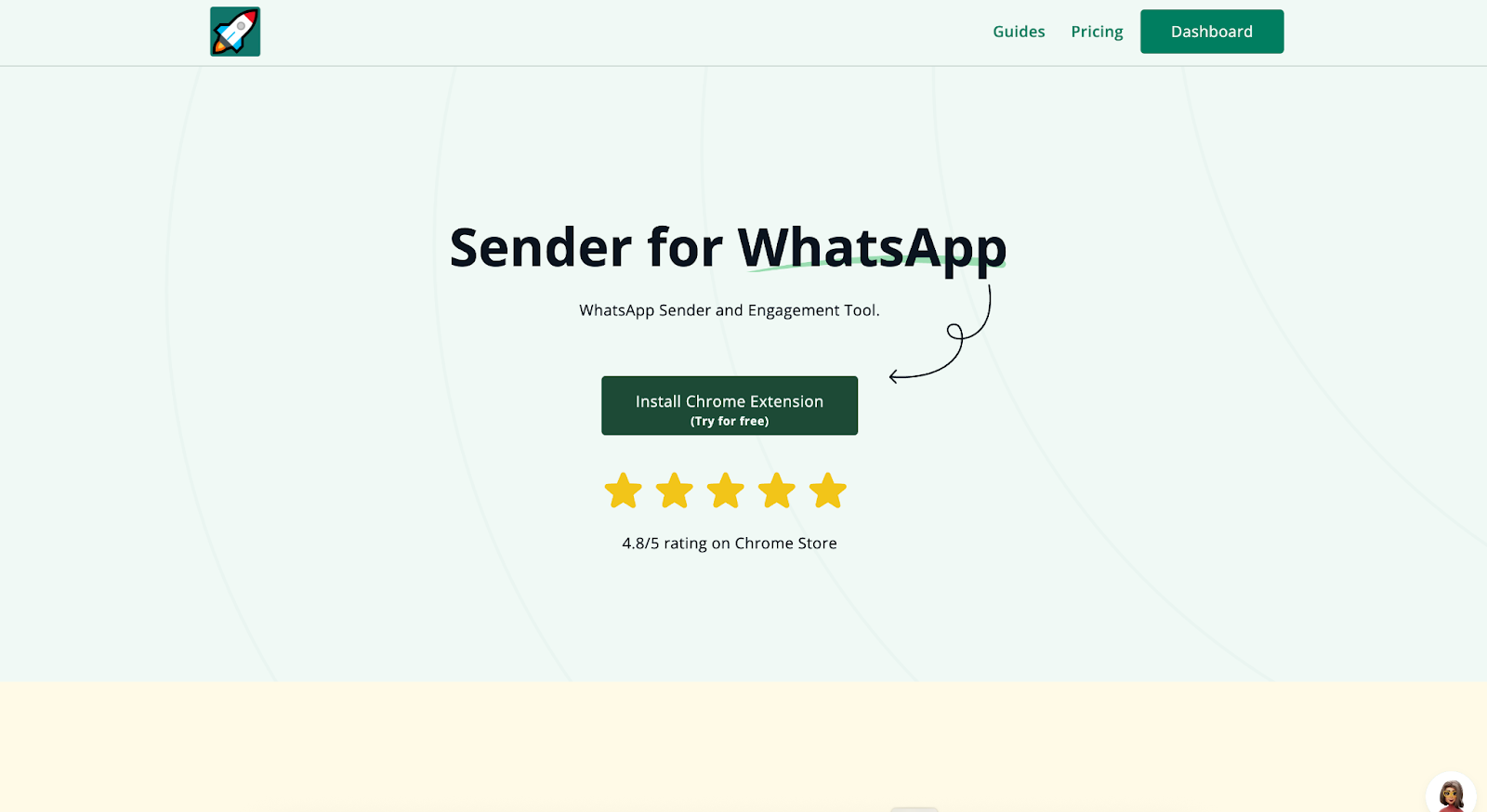
Open Chrome and visit rocketsend.io. Click Install Chrome Extension → Add to Chrome → Confirm. Pin the rocketsend.io icon next to your address bar.
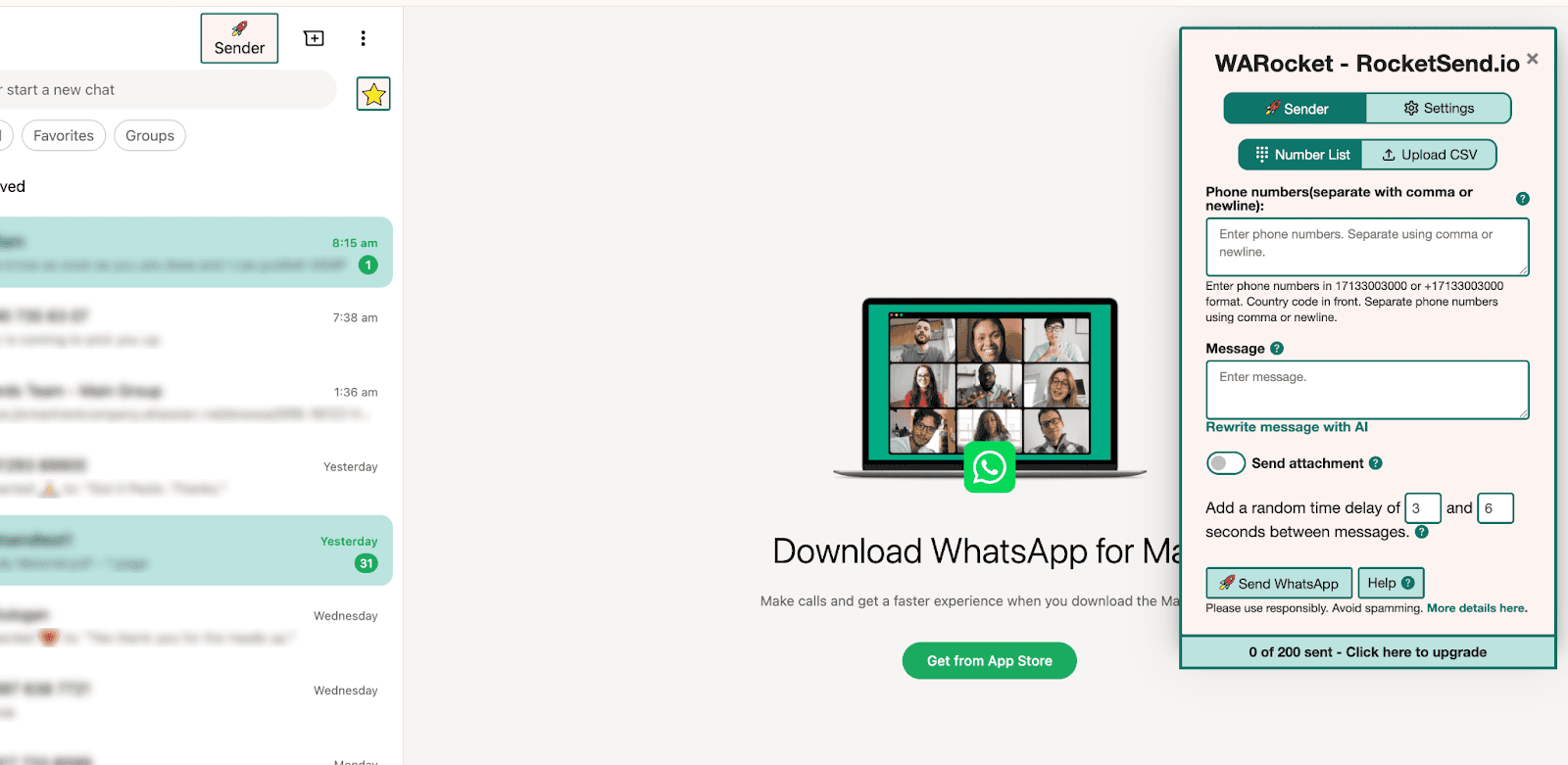
Open WhatsApp Web and click Sender in the top-left to open the rocketsend.io pane.
Create Your First Snippet
Open any conversation and you can see the Quick Chats just above the Message box. Use this for fast reply to messages, further improving your workflow.

Insert Snippets into Chats
Open any WhatsApp conversation in your browser and click the Add Quick Chat button above the message box. Here you can add custom message snippets that you use often.
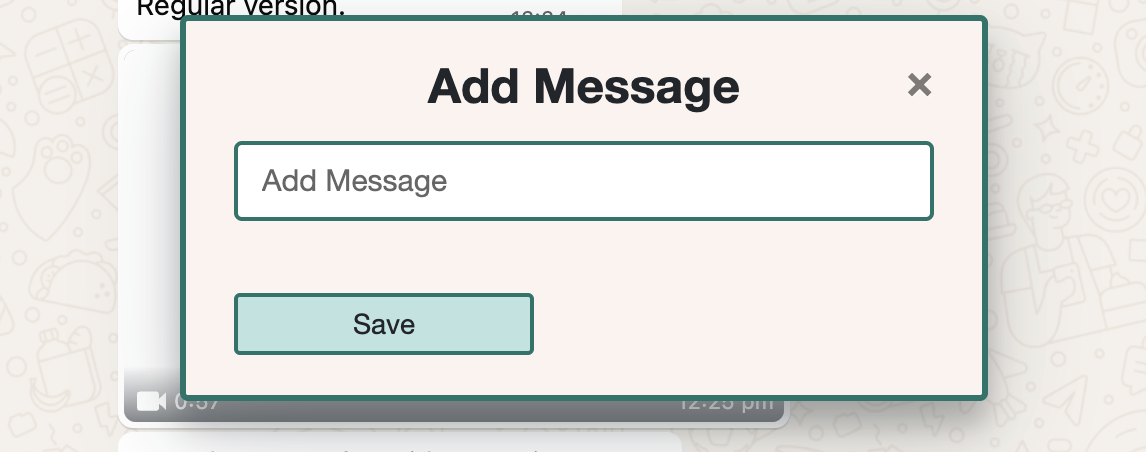
To delete a Quick Chat snippet, just click the X icon beside it.
Best Practices & Tips
- Limit snippets to a single purpose—avoid overly long texts
- Use clear naming conventions, such as prefixes like "FAQ-" for frequently asked question responses
- Periodically review your snippet library and refine messages to reflect new policies or promotions
- Combine snippets with Highlight Unread to respond to high-priority chats with ease
Conclusion
Quick Chat Snippets in rocketsend.io streamline your WhatsApp interactions by making your most-used messages accessible instantly. By creating, organizing, and inserting snippets, you’ll reply faster, maintain consistency, and deliver a superior customer experience. Install rocketsend.io and start building your snippet library today.